Match rows by ID and find the differences
To compare Excel sheets by ID when rows are in a different order, match Order ID first and then compare Amount. Comparing row 2 with row 2 could pair unrelated orders. Use the older export as the reference and the newer export as the comparison file to find a changed amount and orders found in only one file. Moving a row does not count as a change. All Amount values in this example are in USD; RowKite does not convert currencies.
Download the sample files
These fictional records are safe to use for practice. Each file contains only the data shown in this tutorial.
What is in the sample files
Reference file
| Order ID | Amount | Order status |
|---|---|---|
| SO001 | 120 | Paid |
| SO002 | 80 | Paid |
| SO003 | 50 | Paid |
Comparison file
| Order ID | Amount | Order status |
|---|---|---|
| SO003 | 50 | Paid |
| SO001 | 125 | Paid |
| SO004 | 60 | Paid |
Follow these steps
Prepare two exports covering the same scope
Download the reference and comparison files below. Each has headers in the first row and text values for Order ID. For IDs such as 001, set the column to Text before entering or importing values. Use the same reporting period, currency, and definition of Amount in your own files.
Choose the files and sheets
Open the comparison workspace. Add baseline.xlsx as the Reference file and target.xlsx under Files to compare. Select the Orders sheet in both files.
Match by Order ID and compare Amount
Under Match rows by, select Order ID. Under Columns to compare, select Amount. Identical headers map automatically. These amounts are numbers, so keep the default Raw values rule.
Review the results
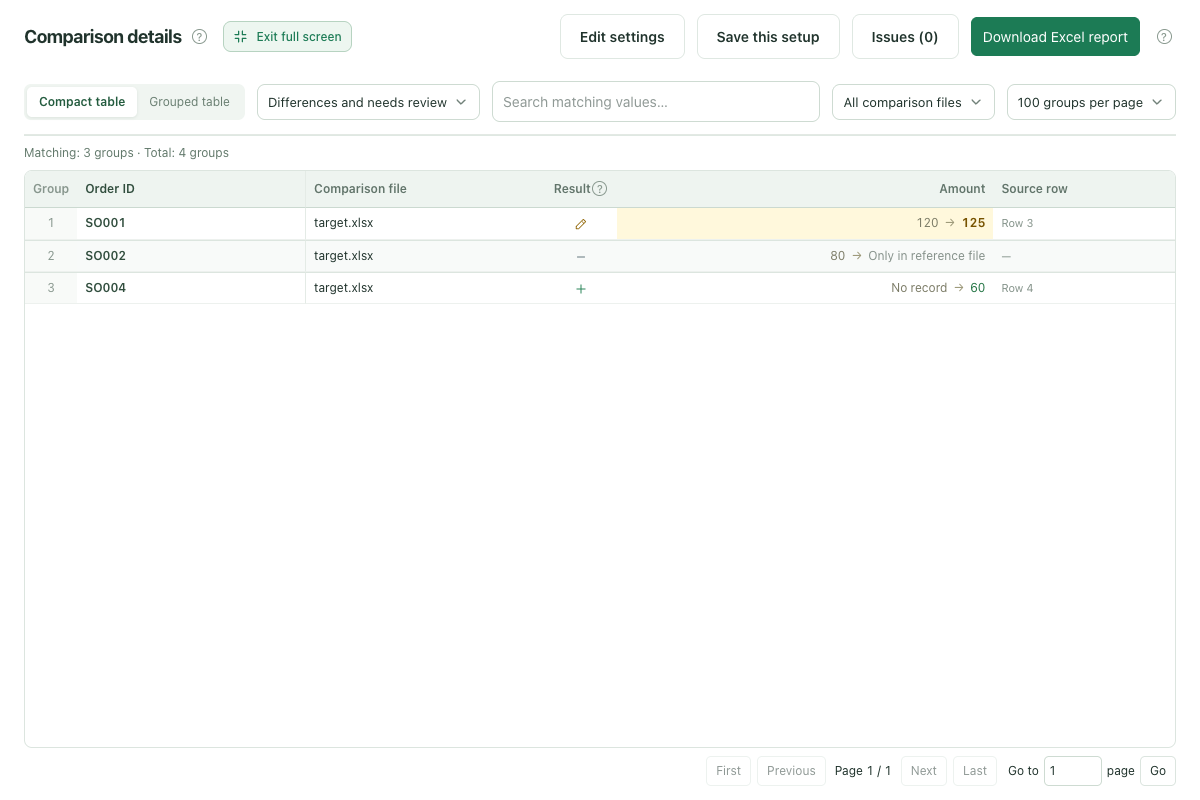
Click Compare files. The default Differences and needs review filter shows SO001, SO002, and SO004. Select All records to see the unchanged SO003. Moving an order to a different row does not count as an amount change.
Download the full report
Click Download Excel report to keep the summary, all comparison details, and issues. The report includes the full result, regardless of the current filter or page.
Expected results
Match rows by: Order ID. Columns to compare: Amount.
| Record | Result | What changed |
|---|---|---|
| SO001 | Changed | Amount changed from 120 to 125. |
| SO002 | Only in reference file | This order appears in the reference file, but not in the comparison file. |
| SO003 | Same | Amount is still 50. Its new row position does not affect the result. |
| SO004 | Only in comparison file | This order appears in the comparison file, but not in the reference file. |
Before using your own files
- If an order has multiple line items, add a line item ID or SKU to the matching columns. Order ID alone cannot identify a unique row.
- In Raw values mode, text "001" differs from the number 1. RowKite cannot restore leading zeros or digits already lost in Excel.
- Added and missing records depend on the reference: SO004 appears only in the newer file, while SO002 appears only in the older file. Swap the files and those statuses reverse. Changed values are also read relative to the selected reference.
- Use standard .xlsx or Excel 97–2003 .xls tables. Formulas are read from their saved results; RowKite does not recalculate them.
Limits: 2–5 .xlsx / .xls files, with both formats allowed in one comparison. Use standard, unencrypted Excel 97–2003 tables for .xls. Limits are 10 MiB per file, 30 MiB total, 10,000 rows and 50 columns per sheet, and 1 million populated cells across all files. Reports are always exported as .xlsx. Refreshing, closing the page, or leaving the workspace clears the current files.
Read the full guide and comparison rules · Learn how files and results are handled
Keep reading
Download sample files, follow the steps, and apply the same approach to your own records.